Hantec Mobile: TradingView charting versus broker connection
Identify whether you need in-app charts or standalone TradingView order entry before migrating.
The confirmed feature
Hantec Mobile explicitly describes TradingView charting: charts, indicators and drawing tools inside the app. The reviewed source does not establish account connectivity to Trading Panel on tradingview.com.
Sources for this section
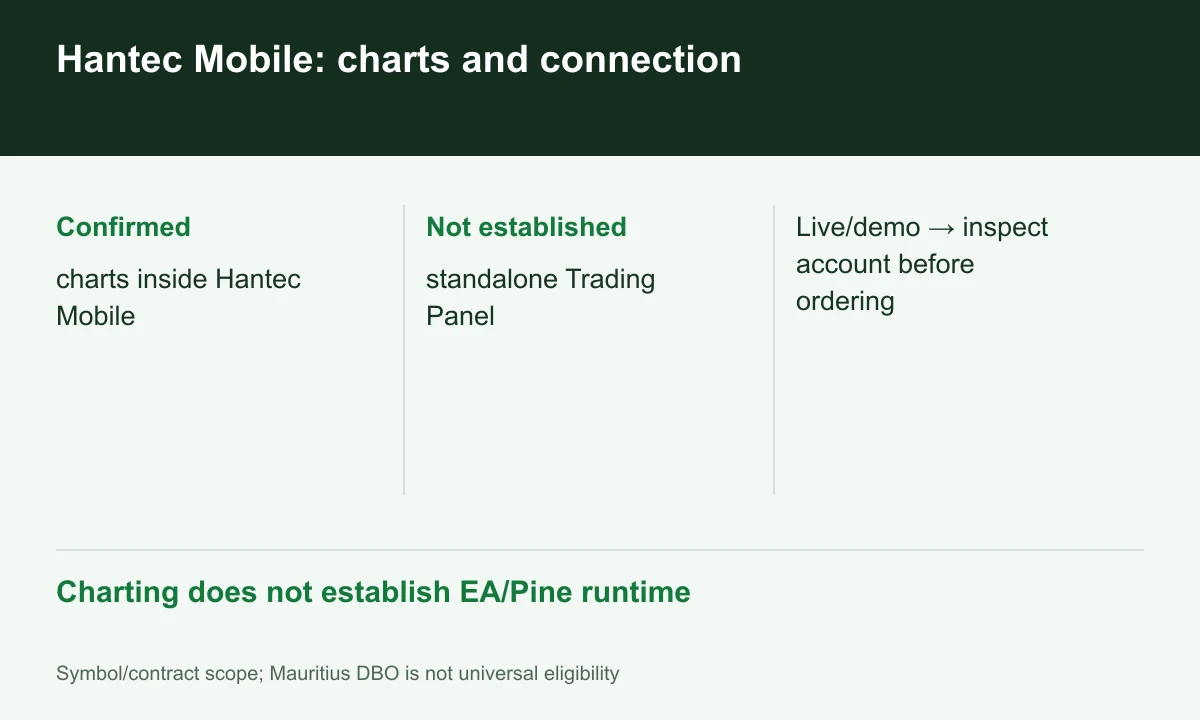
Diagram explained
Charting does not establish EA/Pine runtime
- Confirmed: charts inside Hantec Mobile
- Not established: standalone Trading Panel
- Live/demo → inspect account before ordering
Two different workflows
Analysing and pressing Buy/Sell inside Hantec Mobile is one workflow. Opening standalone TradingView and selecting a broker is another, requiring its own connection support. Similar charts do not establish that second capability.
Sources for this section
Official hantec-markets source Official hantec-markets source
Multiple accounts still require selection
Mobile allows switching between live and demo. Before ordering, inspect account name, Global/Pro/Cent family and volume units. The same underlying chart does not imply identical costs or contract sizes.
Sources for this section
Official hantec-markets source Official hantec-markets source Official hantec-markets source
A practical demo check
In demo, place/amend/close an order and inspect the selected account’s history; verify the indicators actually needed. TradingView charts do not establish Pine Script or EA runtime support. This is a workflow check, not FINEX app testing.
Sources for this section
Official hantec-markets source Official hantec-markets source Official hantec-markets source
Register for up to 100% trading fee rebates
Rebate details
Contact FINEX to confirm the rebate rate, eligible fees and account conditions before registering. contact@finexbroker.com
Your next step
Sources and scope
Sources are provider publications. Conditions may vary by entity, country, account and program. Recheck before signing up.