IC Markets platforms: MT4, MT5, cTrader or TradingView?
Choose an IC Markets platform by workflow, account compatibility and automation needs. Understand the cTrader connection before using TradingView.
This article includes IC Markets partner links. FINEX may earn a commission.
Choose the workflow first, then the account
If you already rely on a MetaTrader indicator or EA, begin with the version it supports. If you mainly trade manually and want a different order-entry workspace, compare cTrader on demo. If TradingView is where you analyse charts, check the cTrader connection rather than assuming a MetaTrader login works there. These are workflow recommendations, not a ranking of execution speed.
The IC Global account overview separates MetaTrader accounts from the cTrader/TradingView offering. This guide covers that published offering, not every IC entity or account available in every country. Confirm the platform shown in your own client area before opening a live account.
IC — account and platform compatibility IC — TradingView via cTrader
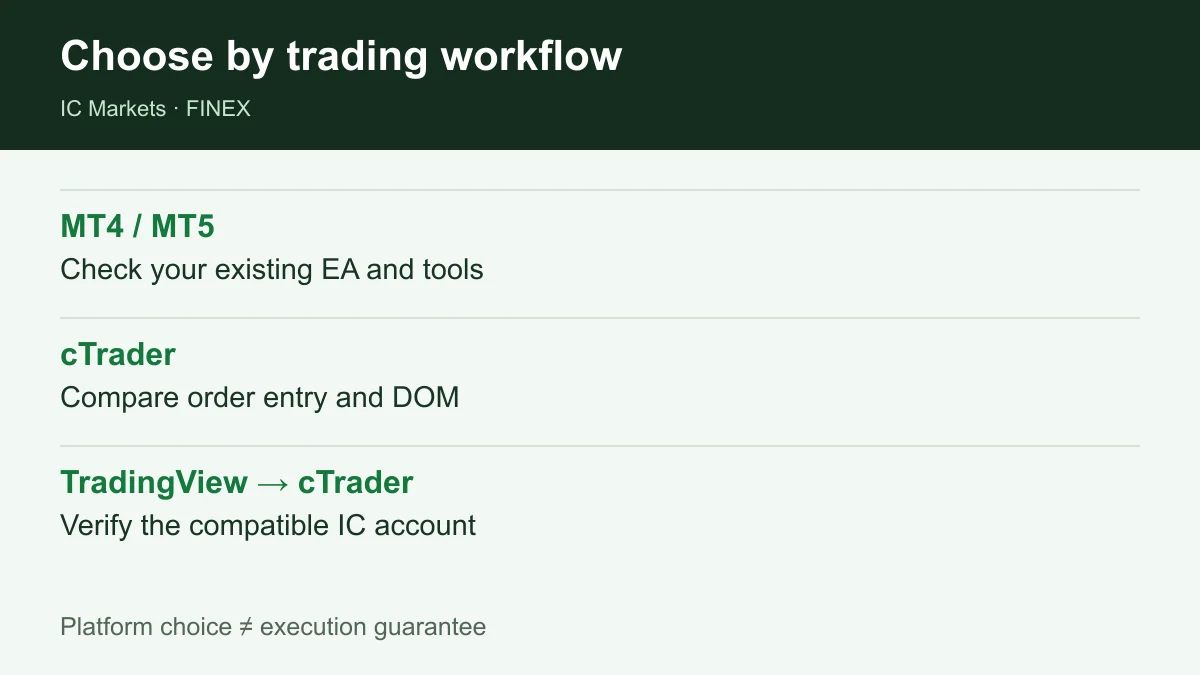
Diagram explained
Platform choice ≠ execution guarantee
- MT4 / MT5: Check your existing EA and tools
- cTrader: Compare order entry and DOM
- TradingView → cTrader: Verify the compatible IC account
MT4 or MT5: check your tools, not just the name
Make a short inventory: the indicator or EA name, its required terminal, the device you use and the instruments you intend to trade. Install the matching demo terminal and test the actual setup. A familiar-looking chart does not establish that your automation, templates or order settings will work unchanged.
For example, a trader with an existing EA should check that EA before switching platforms; a manual trader should compare the steps needed to place and amend an order. Neither choice proves a lower spread or a better fill. Account pricing and platform workflow are separate decisions.
Found the platform that fits your workflow? Explore compatible IC Markets accounts
Register for up to 100% trading fee rebates
Rebate details · Partner link
Contact FINEX to confirm the rebate rate, eligible fees and account conditions before registering. contact@finexbroker.com FINEX may earn a commission through this link.
cTrader and TradingView: understand the connection
IC describes TradingView access through a cTrader integration. In practical terms, check the compatible IC account and connection instructions before choosing TradingView as your trading screen. A TradingView charting subscription alone does not establish access to an IC trading account.
IC lists depth of market and advanced order tools for cTrader. On demo, compare how you set position size, place a stop and edit an existing order. Treat those as usability checks; the existence of DOM does not guarantee available liquidity, execution quality or a particular fill.
IC — TradingView via cTrader IC — cTrader tools and account access
A short demo checklist before registering
Use the same instrument and position size when comparing interfaces. Check the account currency, symbol suffix, order types and how the platform displays commission and overnight charges. Do not compare a cost per lot with a turnover-based charge without converting the units.
Choose the platform that fits your routine, then verify the account, contracting entity and current charges. The FINEX registration link opens IC Markets; it does not select a platform or confirm eligibility for you. You can explore the account options first without funding an account.
Choose your platform, then check the account
Explore account options at IC Markets and check the entity and supported platform before registering.
Register for up to 100% trading fee rebates
Rebate details · Partner link
Contact FINEX to confirm the rebate rate, eligible fees and account conditions before registering. contact@finexbroker.com FINEX may earn a commission through this link.
Sources and scope
Sources are provider publications. Conditions may vary by entity, country, account and program. Recheck before signing up.