Eightcap TradingView: link the account and verify history
Use Eightcap's TradingView connection steps with separate charting and broker credentials, live/demo checks and the broker Reports tab for the full account record.
Create the intended platform account
The integration page says to select TradingView when creating the Eightcap trading account, then use a TradingView account for charting. These are separate logins with different purposes.
Sources for this section
www.eightcap.com — official documentation www.eightcap.com — official documentation www.eightcap.com — official documentation www.eightcap.com — official documentation shared.assets.eightcap.com — official documentation
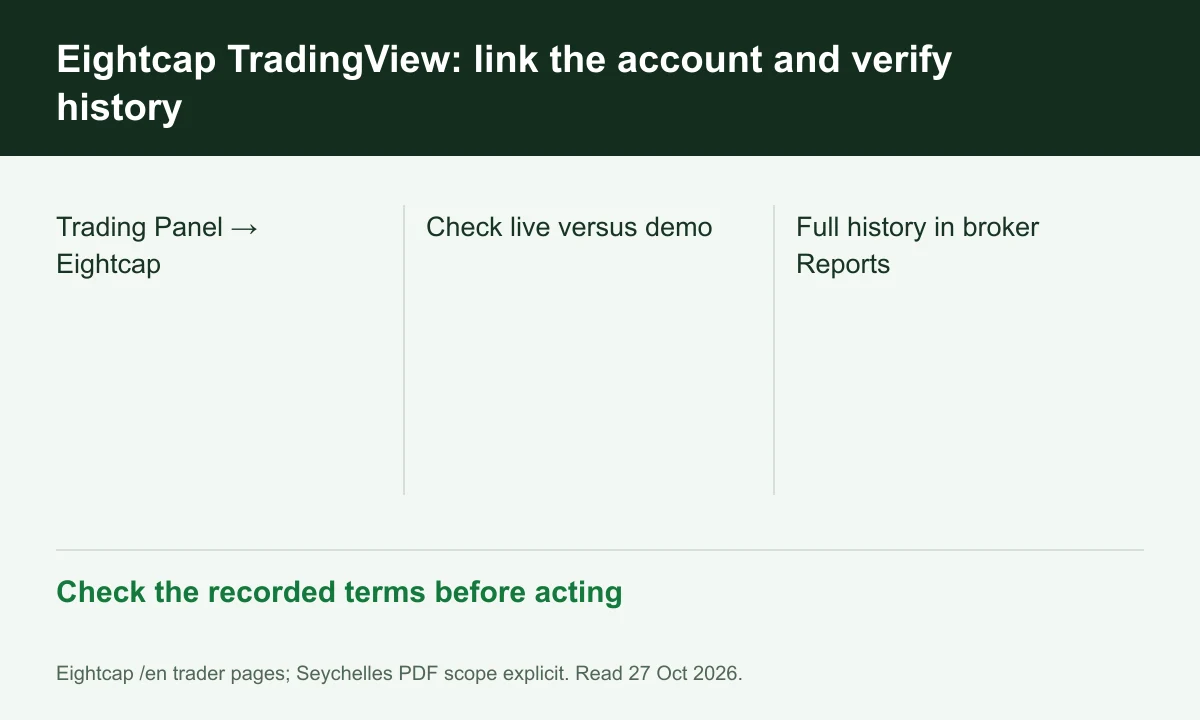
Diagram explained
Check the recorded terms before acting
- Trading Panel → Eightcap
- Check live versus demo
- Full history in broker Reports
Check the connection target
In TradingView's Trading Panel, choose Eightcap and enter the trading-account credentials. Verify the selected account after connection before placing any order, especially when several accounts exist.
Separate demo from live
Eightcap says the integration supports both live and demo accounts and does not require a paid TradingView plan to trade. Simulation access does not establish live funding or eligibility.
Use broker records for reconciliation
The FAQ directs full history to Reports inside Eightcap and funding to the broker account. Preserve order references there rather than assuming a chart layout is the complete ledger.
Register for up to 100% trading fee rebates
Rebate details
Contact FINEX to confirm the rebate rate, eligible fees and account conditions before registering. contact@finexbroker.com
Your next step
Sources and scope
Sources are provider publications. Conditions may vary by entity, country, account and program. Recheck before signing up.